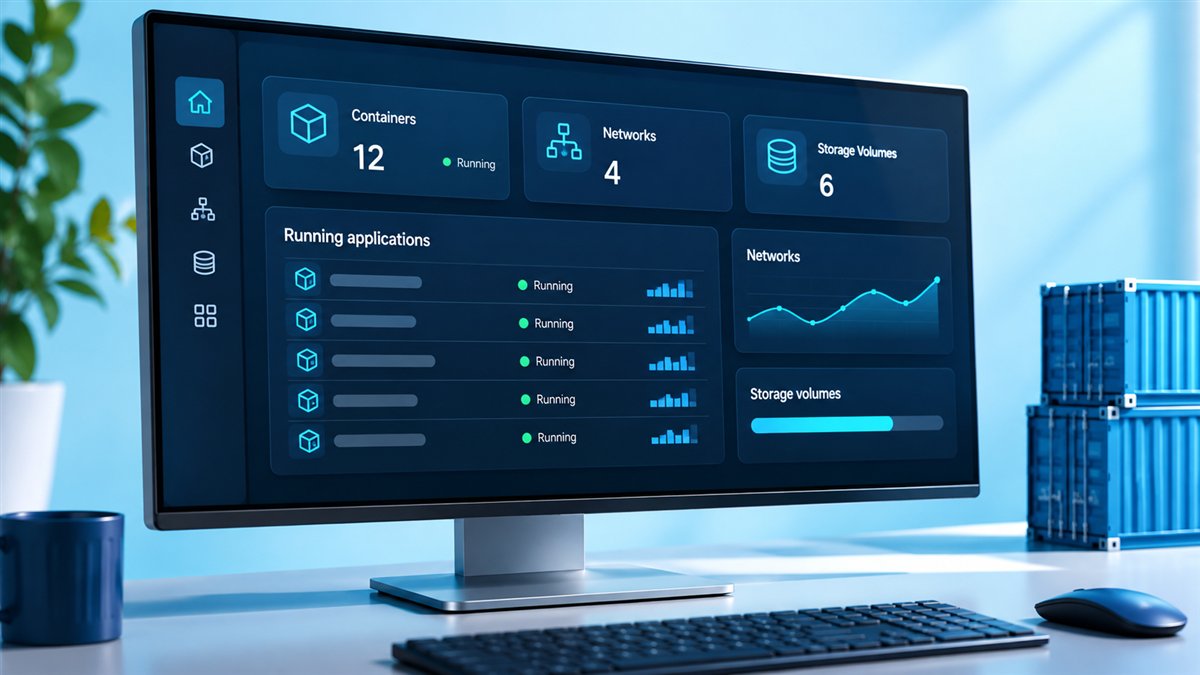
Portainer Community Edition packs a surprising amount of capability into a lightweight container. It gives you a browser-based view of your Docker, Swarm and Kubernetes environments, so routine work like restarting a service, reading logs or deploying a stack takes a few clicks instead of a string of commands.
This guide tours the features you will use most and explains where each one helps.
Container Management
The container list is the heart of Portainer. You can see every container's state, image, ports and creation time, and act on several at once. Starting, stopping, restarting, pausing and removing containers are all one-click actions.
Inside a Container
- Logs with search, timestamps and auto-refresh.
- Console access to open a shell inside the container.
- Inspect view showing the full container configuration.
- Stats for live CPU, memory and network usage.
- Duplicate/Edit to recreate a container with changed settings.
Images, Volumes and Networks
Portainer brings the supporting resources into the same interface. You can pull images, remove unused ones, build from a Dockerfile and push to registries you have configured.
Volumes and networks get similar treatment. You can create, inspect and delete them, and see which containers use each one, which makes cleaning up old resources much less risky.
| Resource | Common actions |
|---|---|
| Images | Pull, build, tag, remove unused, push to registry |
| Volumes | Create, browse usage, remove orphaned volumes |
| Networks | Create, connect containers, inspect configuration |
| Registries | Add private registries and credentials |
Stacks and Compose Support
Stacks let you deploy multi-container applications from a compose file. You can paste YAML into the web editor, upload a file or link a Git repository, then redeploy whenever the file changes. Environment variables keep secrets out of the YAML.
For a complete walkthrough, see the Portainer Docker Compose guide.
App Templates
Templates are pre-filled deployment forms for common applications. They help newcomers launch services quickly and help teams standardise how certain apps are deployed. You can add custom templates with your own approved settings.
Multi-Environment Management
One Portainer instance can manage several environments. Add Docker hosts, Swarm clusters and Kubernetes clusters, then switch between them from the home screen. Remote environments connect through the Portainer Agent, while the Edge Agent suits machines behind firewalls or NAT.
Supported Environment Types
- Docker standalone hosts, local or remote.
- Docker Swarm clusters with services and stacks.
- Kubernetes clusters with namespaces, applications and Helm charts.
- Podman environments in recent releases.
Kubernetes in Community Edition
For Kubernetes, Portainer offers an application-focused view. You can deploy from forms or manifests, manage namespaces, view workloads, check services and ingresses, and install Helm charts without memorising kubectl syntax.
This makes Kubernetes far more approachable for developers who need to ship applications but do not live in the cluster every day.
Users, Teams and Access Control
CE includes user accounts, teams and basic access control, so you can decide who sees which resources. Administrators can restrict resources to specific users or teams. More advanced role-based controls are part of Business Edition, as covered in our edition comparison.
Settings Worth Configuring Early
- Upload your own TLS certificate to replace the self-signed default.
- Configure authentication options that match your organisation.
- Add private registries before deploying private images.
- Set up regular backups of Portainer's configuration.
Registries and Private Images
Most teams eventually need private images, and Portainer makes registry credentials easy to manage. You can add Docker Hub accounts, self-hosted registries and cloud registries, then select them when pulling images or deploying stacks.
Storing credentials centrally means people do not need to log in on every host. It also makes rotating passwords simpler, because you update them in one place rather than across many machines.
Edge Computing Support
The Edge Agent lets Portainer manage devices that are not always reachable, such as machines in remote offices, retail sites or behind consumer routers. The agent connects outward, so you do not need to open inbound ports on those networks.
This opens up use cases far beyond a single server, from small fleets of Raspberry Pi devices to distributed infrastructure. Some advanced edge features belong to Business Edition, so check the documentation for what CE includes in your version.
How CE Features Fit Common Workflows
| Workflow | Portainer features involved |
|---|---|
| Self-hosting home services | App templates, stacks, volumes, logs |
| Developer staging environment | Stacks from Git, registries, console |
| Teaching containers | Visual dashboard, templates, users and teams |
| Small production cluster | Swarm or Kubernetes views, stats, access control |
Limits Worth Knowing
Portainer focuses on management, not deep observability. Container stats are live snapshots, so pair Portainer with a monitoring stack if you need long-term metrics and alerting. Very advanced Docker or Kubernetes options may still need the CLI or manifests.
- Live stats, not historical monitoring dashboards.
- Advanced role-based access belongs to Business Edition.
- Some niche engine options remain CLI-only.
Getting the Most From Community Edition
A few small habits make Portainer CE much more pleasant to use over time. Naming environments clearly, tagging related containers with labels and keeping stacks in Git all help the interface stay organised as your setup grows.
Review the dashboard regularly for stopped containers, unused images and orphaned volumes. Cleaning these up keeps disks healthy and makes it easier to spot real problems when they appear.
- Use clear environment names such as "staging-eu" or "home-lab".
- Keep long-lived applications as stacks rather than loose containers.
- Prune unused images and volumes after confirming they are safe to remove.
Frequently Asked Questions
Not entirely. It covers most daily tasks visually, but the CLI is still useful for scripting, automation and some advanced options.
Yes. You can add remote environments using the Portainer Agent or Edge Agent, depending on your network setup.
Yes. You can create custom templates so your team deploys approved configurations consistently.
Container statistics show CPU, memory and network usage for running containers. For long-term monitoring, pair Portainer with a dedicated monitoring stack.
Conclusion
Portainer Community Edition covers the everyday essentials of container management: containers, images, volumes, networks, stacks, templates, multiple environments and Kubernetes workloads, all in one clean interface and free to use.
To try these features yourself, follow the installation guide or visit the download section.