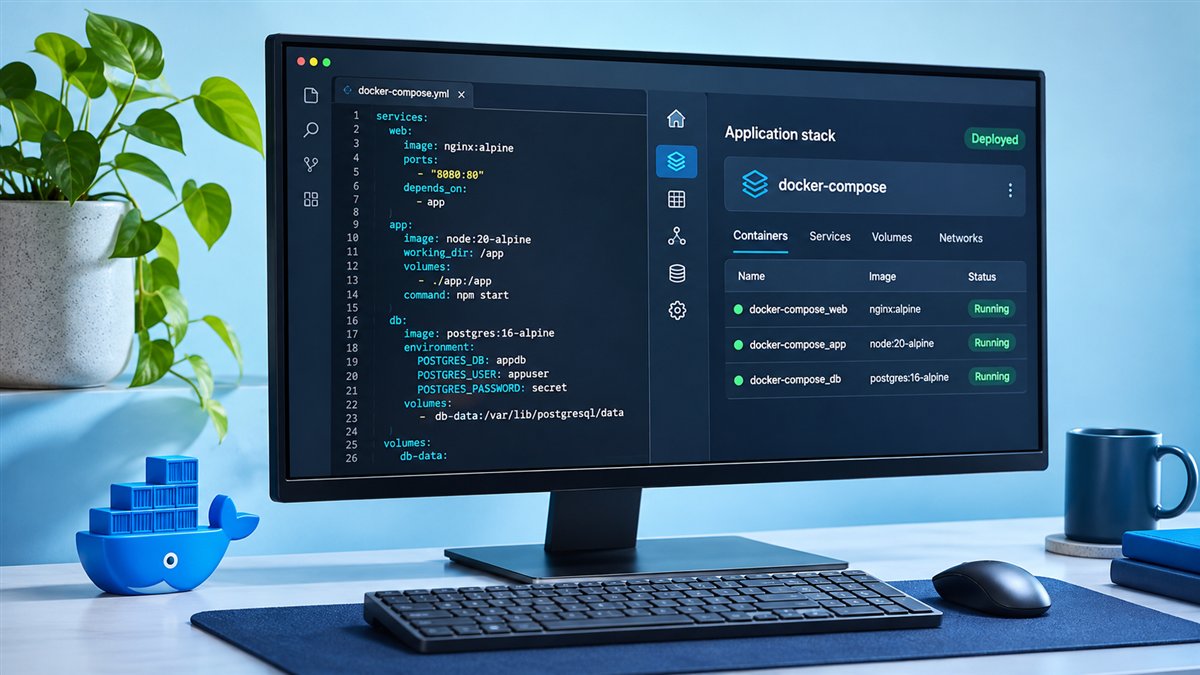
Portainer Docker Compose usage covers two different jobs. The first is running Portainer itself with a compose file instead of a long docker run command. The second is using Portainer's Stacks feature to deploy and manage your own Compose applications from the browser.
This guide handles both, with a working compose file, deployment options and tips for keeping stacks tidy.
Why Use Compose for Portainer
A compose file turns your Portainer setup into a short, readable document. Instead of remembering ports, volumes and restart policies, you keep everything in one YAML file that you can version, review and reuse on another server.
- Easier to read and share than a long one-line command.
- Simple to store in Git alongside other infrastructure files.
- Upgrades become a pull and a single
up -d.
A Compose File for Portainer CE
Create a folder such as ~/portainer and save the following as docker-compose.yml. It mirrors the standard installation, using the long-term support image and a named volume:
services:
  portainer:
    image: portainer/portainer-ce:lts
    container_name: portainer
    restart: always
    ports:
      - "9443:9443"
      - "8000:8000"
    volumes:
      - /var/run/docker.sock:/var/run/docker.sock
      - portainer_data:/data

volumes:
  portainer_data:
Start It
From the same folder, run docker compose up -d. Docker creates the volume, pulls the image and starts the container. Open https://your-server:9443 and create the admin account.
Remove the 8000:8000 line if you do not plan to use Edge agents. Fewer published ports means a smaller attack surface.
Updating With Compose
Updating is pleasantly short. Pull the newer image and recreate the container; the named volume keeps your data.
docker compose pull
docker compose up -d
Check the release notes before major jumps, and back up the volume if the notes mention database or configuration changes.
Deploying Your Own Stacks in Portainer
Inside Portainer, open your environment and select Stacks, then Add stack. Give it a name and choose how to supply the compose content. Portainer validates the YAML and deploys the services for you.
Three Ways to Add a Stack
| Method | Best for |
|---|---|
| Web editor | Quick tests and small applications |
| Upload a file | Reusing an existing compose file from your computer |
| Git repository | Version-controlled stacks and team workflows |
Git-based stacks are the most maintainable choice for anything long-lived, because every change has history and a reviewer can see exactly what changed.
Environment Variables and Secrets
Hard-coding passwords inside compose files is a common mistake. Portainer's stack form lets you add environment variables that are substituted into the file at deploy time, keeping sensitive values out of the YAML.
- Use variables like
${DB_PASSWORD}in the compose file. - Set the real values in the stack's environment variables section.
- On Swarm, consider Docker secrets for credentials.
Editing and Redeploying
To change a stack, open it, edit the compose content or variables and click update. Portainer recreates only the services that need it. For Git-based stacks, you can pull and redeploy the latest commit when you are ready.
Good Habits for Stacks
- Pin image tags instead of relying on
latestfor important services. - Add health checks so Portainer can show real service status.
- Name volumes clearly so backups are easy to target.
- Keep one application per stack for simpler troubleshooting.
Compose on Standalone Docker vs Swarm
On a single Docker host, stacks behave like regular Compose projects. On a Swarm cluster, Portainer deploys them as Swarm stacks, which supports options such as replicas and placement constraints. Some Compose features differ between the two, so test files in the target environment.
Running Portainer Compose on Windows or macOS
The same compose file works on Docker Desktop for Linux containers, because Docker Desktop exposes the engine through a compatible socket path. Save the file, open a terminal in that folder and run docker compose up -d exactly as on Linux.
Managing Windows-native containers is different, since they use a named pipe instead of a Unix socket. In that case, follow the Windows instructions in Portainer's documentation and adjust the volume mapping they provide.
Organising Compose Files for Teams
As the number of stacks grows, a little structure saves a lot of confusion. Keep each stack in its own folder or Git path, with a clear name, a short README and an example environment file that lists required variables without real secrets.
Portainer works well with this approach because Git-based stacks point directly at a repository path. Reviewers can approve changes in pull requests, and Portainer simply redeploys the approved version.
| File | Purpose |
|---|---|
docker-compose.yml | Services, networks and volumes for the stack |
.env.example | Lists variables without real values |
README.md | Explains what the stack does and how to update it |
Removing a Stack Cleanly
Deleting a stack in Portainer stops and removes its containers and networks. Named volumes are usually kept, which protects your data but can leave storage behind. Review the Volumes page afterwards and remove anything you no longer need, after confirming it is safe to delete.
Checking Logs for a Stack
When a stack does not behave as expected, open it in Portainer and select an individual container to read its logs. Errors such as failed database connections or missing variables usually appear within the first lines after startup.
On the command line, docker compose logs -f in the stack folder gives the same view for Compose projects you manage outside Portainer, which is useful when comparing behaviour.
Frequently Asked Questions
On a standalone Docker host, a stack is essentially a Compose project managed through Portainer. On Swarm, stacks are deployed as Swarm stacks.
Yes. You can point a stack at a Git repository and compose file path, which makes changes easier to track and review.
Use environment variables defined in the stack form or a separate env file rather than hard-coding passwords in the compose file.
Portainer can show containers from Compose projects created on the command line, but full stack editing works best for stacks deployed through Portainer.
Conclusion
Portainer Docker Compose workflows make container management easier on both sides: a compact file to run Portainer itself, and a friendly Stacks interface to deploy and update your own applications. Start with the compose file above, then move long-lived stacks into Git.
New to Portainer? Begin with the Linux installation guide or explore the Community Edition features.